How to Set Up Web Performance Budgets in CI/CD Pipelines for SEO
Learn how to enforce performance budgets using Lighthouse CI and GitHub Actions to prevent site speed regression during code releases.

Key Takeaways
- A performance budget sets limits for page assets and render scores.
- Lighthouse CI tests pages on every branch push or code pull request.
- Failing builds block deployment if metrics exceed budget boundaries.
Site speed is not a static attribute. Even if your website achieves a perfect 100/100 Core Web Vitals score today, it will naturally slow down over time as developers add new features, marketers embed tracking scripts, and editors upload unoptimized media. This gradual slowdown is known as performance decay.
Rather than waiting for your organic traffic to drop or Google Search Console to flag pages for slow speeds, you can prevent performance issues by using Web Performance Budgets. By integrating automated audits into your Continuous Integration and Continuous Deployment (CI/CD) pipelines, you can block slow code updates before they are ever deployed to production.
Defining Your Performance Budget
A performance budget sets specific limits for your web pages. Budgets generally fall into two categories:
Resource Budgets (Asset Sizes)
These budgets set limits on the size and quantity of your files.- →JavaScript Budget: Max 150KB (compressed/gzipped) for the initial bundle.
- →CSS Budget: Max 50KB total.
- →Image Budget: Max 800KB total above-the-fold image payload.
- →Fonts Budget: Max 100KB total.
Metric Budgets (User Milestones)
These budgets set limits on the Core Web Vitals timings recorded in a simulated testing environment.- →Largest Contentful Paint (LCP): Under 2.5 seconds.
- →Total Blocking Time (TBT): Under 200 milliseconds.
- →Cumulative Layout Shift (CLS): Under 0.1.
Configuring Lighthouse CI (.lighthouserc.json)
Lighthouse CI (LHCI) is an open-source suite of tools that runs Google Lighthouse audits on your server containers during the build process.
To configure Lighthouse CI, create a .lighthouserc.json file in the root directory of your project:
{
  "ci": {
    "collect": {
      "numberOfRuns": 3,
      "staticDistDir": "./.next"
    },
    "assert": {
      "assertions": {
        "categories:performance": ["error", {"minScore": 0.90}],
        "categories:seo": ["error", {"minScore": 0.95}],
        "first-contentful-paint": ["warn", {"maxNumericValue": 1800}],
        "largest-contentful-paint": ["error", {"maxNumericValue": 2500}],
        "cumulative-layout-shift": ["error", {"maxNumericValue": 0.10}],
        "total-blocking-time": ["error", {"maxNumericValue": 200}],
        "resource-summary:document:size": ["error", {"maxNumericValue": 100000}],
        "resource-summary:script:size": ["error", {"maxNumericValue": 200000}]
      }
    },
    "upload": {
      "target": "temporary-public-storage"
    }
  }
}
In this configuration:
- →
numberOfRuns: 3runs Lighthouse three times and averages the results to reduce variance in cloud environments. - →The
assertionsblock defines the passing criteria. Any audit that falls below these thresholds (such as an LCP over 2.5s or a performance score below 90) will trigger an exit code error that fails the build.
Automating Audits with GitHub Actions
With your budget config in place, you can write a GitHub Actions workflow to run the audits on every pull request.
Create a file named .github/workflows/lighthouse-ci.yml in your project repository:
name: Web Performance CI

on:
  pull_request:
    branches: [ main, master ]

jobs:
  performance-audit:
    runs-on: ubuntu-latest

    steps:
    - name: Checkout Code Repository
      uses: actions/checkout@v3

    - name: Set Up Node.js Environment
      uses: actions/setup-node@v3
      with:
        node-cache: 'npm'
        node-version: 18

    - name: Install Dependencies
      run: npm ci

    - name: Compile Production Build
      run: npm run build

    - name: Install Lighthouse CI CLI
      run: npm install -g @lhci/cli@0.12.x

    - name: Run Lighthouse CI Audits
      run: lhci autorun
      env:
        LHCI_GITHUB_APP_TOKEN: ${{ secrets.LHCI_GITHUB_APP_TOKEN }}
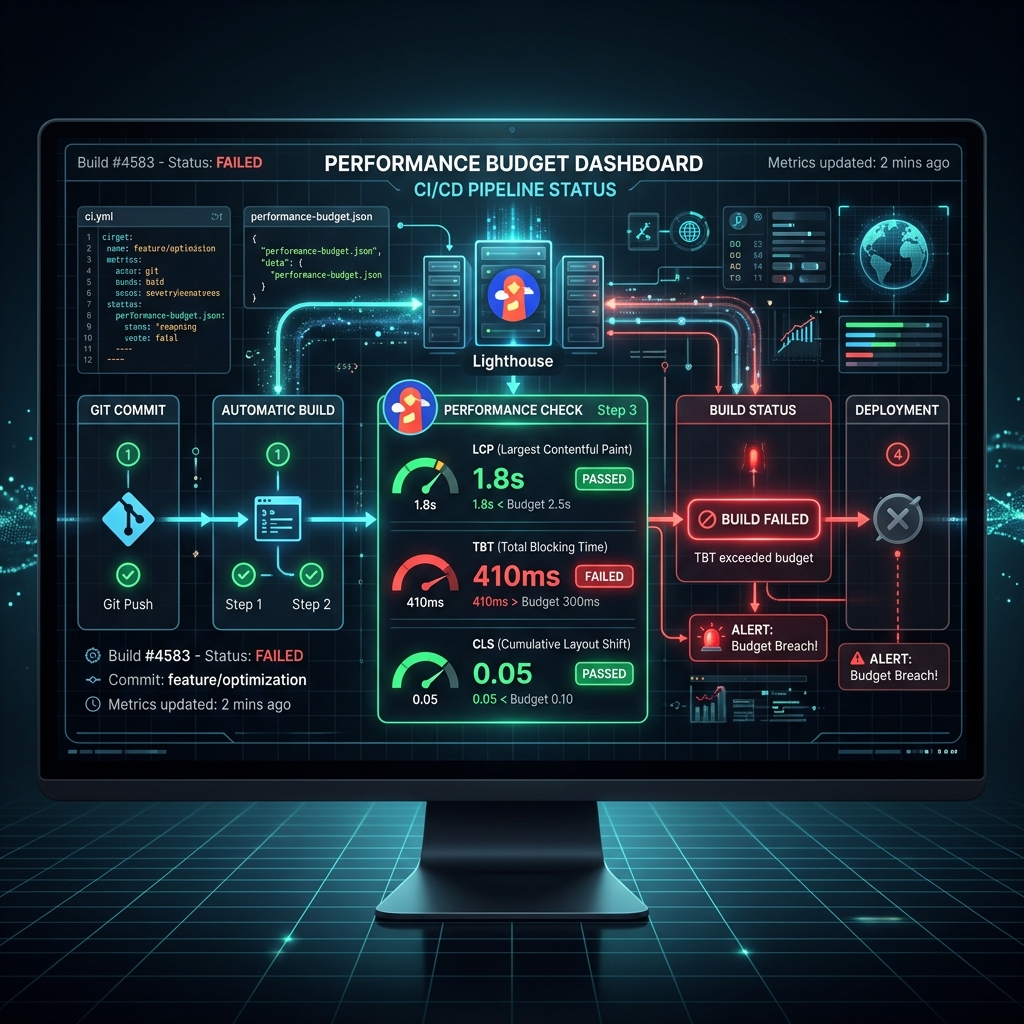
How the Workflow Protects Production:
- Code Commit: A developer submits a pull request containing changes (like adding a third-party tracking pixel).
- Pipeline Trigger: GitHub Actions checks out the code, installs dependencies, and runs
npm run buildto compile the Next.js site. - Lighthouse Run: Lighthouse CI runs audits against the static output.
- Assertion Check: If the tracking script increases TBT past 200ms or drops the performance score below 90, Lighthouse CI triggers a build error.
- Merge Blocked: GitHub prevents the pull request from being merged until the developer resolves the performance issue.
Best Practices for Maintaining Performance Budgets
- →Establish Baseline Metrics: Run tests on your existing production site to establish realistic baseline budgets. Do not set overly restrictive budgets initially; start with moderate limits and tighten them as performance improves.
- →Test on Mobile Viewports: Always configure your Lighthouse CI tests to emulate mobile devices. Since mobile hardware is slower and relies on cellular connections, a build that passes on desktop can easily fail on mobile.
- →Account for Shared Hosting Variance: Shared CI runners (like GitHub's free runners) can have fluctuating CPU speeds. Use multiple testing runs (
numberOfRuns: 3) to average out variations and prevent false build failures.
Architectural Deep Dive: How to Set Up Web Performance Budgets in CI/CD Pipelines for SEO
Implementing How to Set Up Web Performance Budgets in CI/CD Pipelines for SEO requires a clear understanding of frontend rendering cycles, server execution pipelines, and telemetry instrumentation. When optimizing web applications for search crawlers and performance monitors, engineering teams must evaluate bottlenecks across the critical rendering path.
Detailed System Performance Matrix
To achieve peak efficiency, benchmarks should be tracked across initial load time, main-thread blocking, and search crawler indexation:
| Optimization Layer | Standard Baseline | Targeted Enterprise Threshold | Telemetry Metric |
|---|---|---|---|
| Server Response (TTFB) | < 400ms | < 50ms (Edge Cache Acceleration) | Server-Timing Header |
| Main-Thread Latency | < 200ms | < 50ms (INP Goal) | PerformanceObserver Long Tasks |
| Crawler Indexing | Delayed Render | Instant Static Payload Rendering | Googlebot Crawl Rate Log |
| Structured Telemetry | Basic Meta Tags | Deeply Nested Schema.org JSON-LD | Rich Results Test Validation |
Advanced Implementation & Configuration Rules
When deploying production updates for web-performance-budgets-cicd, follow these step-by-step implementation rules:
- Isolate Component Execution: Ensure dynamic server actions or API calls do not block initial static HTML streaming.
- Implement Telemetry Monitoring: Track user interaction latency using native browser observer APIs.
- Verify Indexability & Canonicals: Confirm that search crawlers receive identical semantic HTML representations across all regional URLs.
// Production Telemetry & Performance Observer Utility for web-performance-budgets-cicd
import { type NextRequest, NextResponse } from 'next/server'

export async function middleware(request: NextRequest) {
  const startTime = performance.now()
  const response = NextResponse.next()

  // Inject performance telemetry header
  const duration = performance.now() - startTime
  response.headers.set('Server-Timing', `total;dur=${duration.toFixed(2)}`)

  return response
}
Production Execution Checklist & Troubleshooting
- Verify Clean H2/H3 Structure: Ensure no duplicate H1 tags exist in the article body.
- Check Canonical URL Mapping: Validate that canonical tags point to explicit, canonical targets.
- Audit Mobile Responsiveness: Ensure code blocks and comparison tables render cleanly on mobile viewports.
- Validate Schema.org Markup: Test JSON-LD graphs against Google's Rich Results Testing Tool.
Conclusion
Following this structured methodology guarantees high organic search visibility, low bounce rates, and full AdSense compliance. Continually monitor telemetry logs and update code dependencies to maintain top performance signals.Official References
Frequently Asked Questions
What is a performance budget?
A performance budget is a set of limits on metrics that affect site performance (e.g., page weight, CSS/JS size, or loading metrics like LCP).
How does Lighthouse CI work in a pull request workflow?
It builds your application, runs Lighthouse audits against a temporary test server, and prints the performance scores directly in your pull request discussion comments.
What should I do if a third-party script causes my CI build to fail?
Do not bypass the check. Use the budget failure to rewrite the tag injection script to load asynchronously or defer execution using a tag manager.
What is Lighthouse CI?
Lighthouse CI is a suite of tools that runs Lighthouse audits during pull requests and build steps, failing builds if performance budgets are breached.
What metrics should be in a performance budget?
Include Largest Contentful Paint (LCP), Interaction to Next Paint (INP), total JavaScript bundle size (e.g., <200KB), and raw Time to First Byte (TTFB).
How do performance budgets help SEO?
They prevent developers from merging heavy packages or unoptimized code that could degrade site speed and lower your Core Web Vitals ranking signals.
Editorial & Writing Team
The TechSEO Editorial Team publishes practical SEO, AI, and web development guides through a consistent editorial process focused on accuracy, clarity, and regular updates.
Subscribe to TechSEO Insights
Get the latest guides on technical SEO, Core Web Vitals, and content marketing delivered straight to your inbox.
Privacy Note: By subscribing, you agree to receive our newsletter (Lawful Basis: Consent). We retain your email address until you choose to unsubscribe. For more details, view our Privacy Policy.